Spreadsheet Import for Job Trackers That Actually Works
You exported your job tracker, cleaned it up in Excel, uploaded it into a new tool, and everything looked fine for about ten seconds. Then the dates shifted. A few phone numbers lost their leading zeros. One company name came through with broken characters. A status column mapped cleanly, but half the values now mean something else.
That's a normal spreadsheet import failure. Not a dramatic crash. A quiet one.
Spreadsheet import has been a core workflow for years because tabular data became broadly portable through CSV and Excel interoperability across tools like Microsoft Excel and Stata, which both document CSV and workbook import as standard paths for moving data between systems (UCLA Stata notes). The problem is that portability gets mistaken for fidelity. A file can move successfully and still arrive changed.
For job trackers, the dangerous fields are usually ordinary ones: application date, phone number, job ID, recruiter name, salary notes, custom statuses. They don't throw obvious errors when they mutate. They just stop matching reality. The way around that is to stop treating spreadsheet import like a one-click upload and start treating it like a staged validation workflow.
Why Your Last Import Probably Lost Data
A familiar scenario: you upload a spreadsheet with a long list of applications, the importer accepts it, and the preview looks mostly right. Later you notice the tracker has split one row into extra columns, turned dates into a different regional format, and flattened IDs that were supposed to stay as text.

The first failure mode is delimiter drift. CSV doesn't always mean comma-separated in practice. Depending on region and spreadsheet settings, a file may use semicolons or tabs. If the parser guesses wrong, company names slide into the status column, notes spill into location, and the import may still “succeed” with bad alignment. Practical import patterns call out automatic delimiter detection and quoted-field handling because real CSVs vary by region and formatting style (CSV import validator pattern).
Four ways files change without warning
- Locale-specific delimiters: A spreadsheet saved on one machine may export with semicolons instead of commas.
- Encoding mismatches: Names with accents or non-English characters can break when a parser expects UTF-8 and receives a different encoding.
- Spreadsheet re-save coercion: Excel or another editor may convert long IDs, ZIP codes, or phone numbers into numbers, scientific notation, or stripped values.
- Timestamp auto-detection: A date like 2025-03-04 can end up displayed and stored differently depending on locale assumptions.
Practical rule: If a spreadsheet import “worked” but you didn't verify field-level fidelity, assume you still have inspection left to do.
The part most guides skip is re-save corruption. The risky moment often isn't the import itself. It's the cleanup pass before import, when someone opens the file in Excel or Google Sheets, fixes a few cells, and saves it again. That's when leading zeros disappear, formulas become values, delimiters change, and date interpretation gets rewritten.
What reliable imports actually look like
Microsoft's import documentation and Stata's import guidance both reflect a long shift from manual data entry to direct file ingestion, with users now routinely importing .xlsx, .xls, and .csv files, selecting worksheets, and reading variable names from the first row (Microsoft Excel import documentation). That convenience is real. It just doesn't guarantee your fields stayed intact.
A good spreadsheet import process treats the file as suspect until proven clean.
Preparing CSV and XLSX Files for Clean Import
The cleanest imports start before upload. Most errors come from file shape, not from the tracker.
Start with the header row
Lock the first row before you do anything else. Use one row only. Make every header unique. Keep names stable and simple, ideally in a format like company_name, job_title, application_date, job_url.
Avoid these completely:
- Merged header cells: Parsers read them inconsistently.
- Blank columns: They create phantom fields during mapping.
- Inline notes: Comments like “update later” belong in a dedicated notes column, not inside structure.
- Duplicate names: Two
statuscolumns force ambiguous mapping.
Pick the format on purpose
For most job tracker imports, CSV in UTF-8 is the safest default because it keeps the file simple and visible. If your notes or job descriptions contain lots of commas, TSV can be easier to audit in plain text. Use XLSX only when you need workbook structure, multiple sheets, or formulas preserved before the final export.
Here's the trade-off in plain terms:
| Criteria | CSV (UTF-8) | XLSX |
|---|---|---|
| Best for | Simple application logs | Multi-sheet workbooks and richer formatting |
| Human auditability | Easy to inspect in a text editor | Harder to inspect outside spreadsheet apps |
| Delimiter risk | Yes, must verify comma/semicolon/tab | Lower delimiter risk inside workbook |
| Encoding risk | Must be handled deliberately | Less visible until export |
| Formula preservation | No | Yes |
| Import predictability | Usually better when normalized | Good if the importer supports workbook parsing well |
If you're also cleaning supporting documents during this process, keep your source files organized. A resume workflow like uploading a resume into Eztrackr works better when the spreadsheet and attached documents use the same naming discipline.
Normalize dates and text before export
Use ISO-style dates such as YYYY-MM-DD across the whole sheet. Treat phone numbers, IDs, postal codes, and any field with possible leading zeros as text before export. Don't rely on display formatting alone. If the underlying cell is numeric, the damage may already be done.
Open the export in a plain-text editor once before upload. You're checking what the parser will read, not what Excel chooses to display.
A small smoke test helps more than a heroic cleanup. Export a five-row sample first, import it, inspect every field, then run the full file. That saves far more time than cleaning up a full import after the tracker has accepted bad data.
Mapping Your Columns to Tracker Fields
Field mapping looks simple because the UI usually makes it feel simple. It isn't. Mapping is where you decide what each column means inside the destination system.
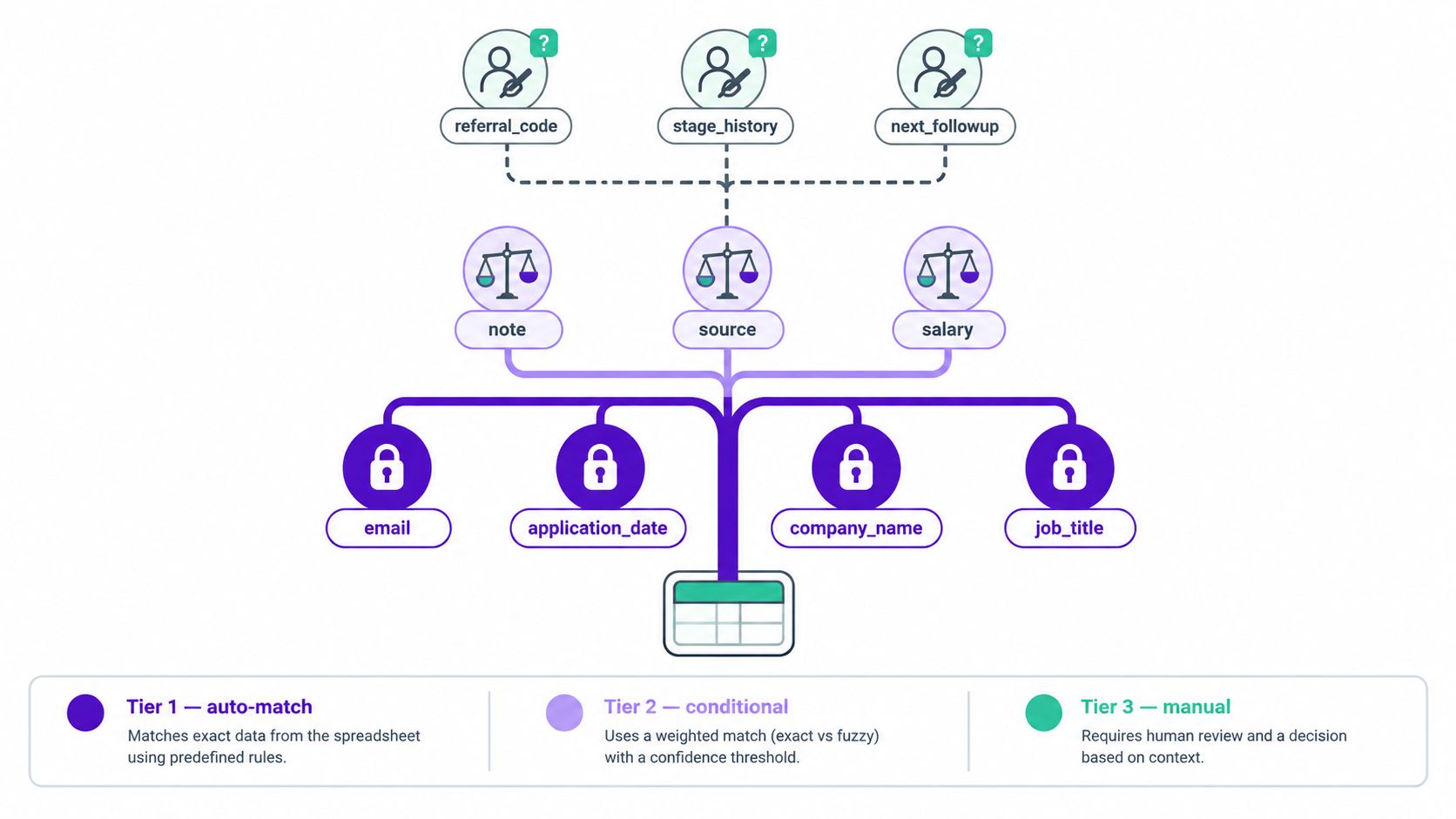
The safest way to think about it is in three tiers.
Tier 1 fields can usually auto-match
These are fields where meaning is stable across most trackers. email, application_date, company_name, and job_title usually belong here. Exact header matching or alias matching is fine when the semantics are obvious.
Tier 2 fields need human review
A status column from one sheet may mean “applied / interviewing / rejected,” while another uses “saved / reached out / follow up next week.” source, location, and salary_range have the same problem. The header matches, but the values don't.
If you want a good mental model for why this matters, look at how systems classify hiring workflow stages differently. That's part of the logic behind how applicant tracking systems work. The field name is only half the problem. The allowed values are the other half.
Tier 3 fields should be mapped explicitly or ignored explicitly
Custom columns cause the most confusion:
- recruiter notes
- referral contact
- interview round counter
- follow-up script
- internal tags
- offer package notes
These shouldn't be guessed. Either map them to a flexible text field, create a custom destination field if the platform allows it, or skip them on purpose. Silent dropping is worse than a visible unmapped warning.
A status like “Stage 2 – Phone Screen” should never auto-collapse into a generic tracker value without a translation rule.
A few mapping decisions matter more than people expect:
- Null handling: Decide whether blanks should stay blank or trigger a default.
- Overwrite logic: Choose whether an import updates existing records or only fills missing values.
- Value translation: Build a lookup for status labels, source labels, and location shorthand before commit.
Good mapping is conservative. It doesn't try to be clever.
Running an Import the Safe Way
Reliable spreadsheet import is a pipeline: upload, parse, validate, review, commit. If your tool compresses that into a single button, your process still shouldn't.
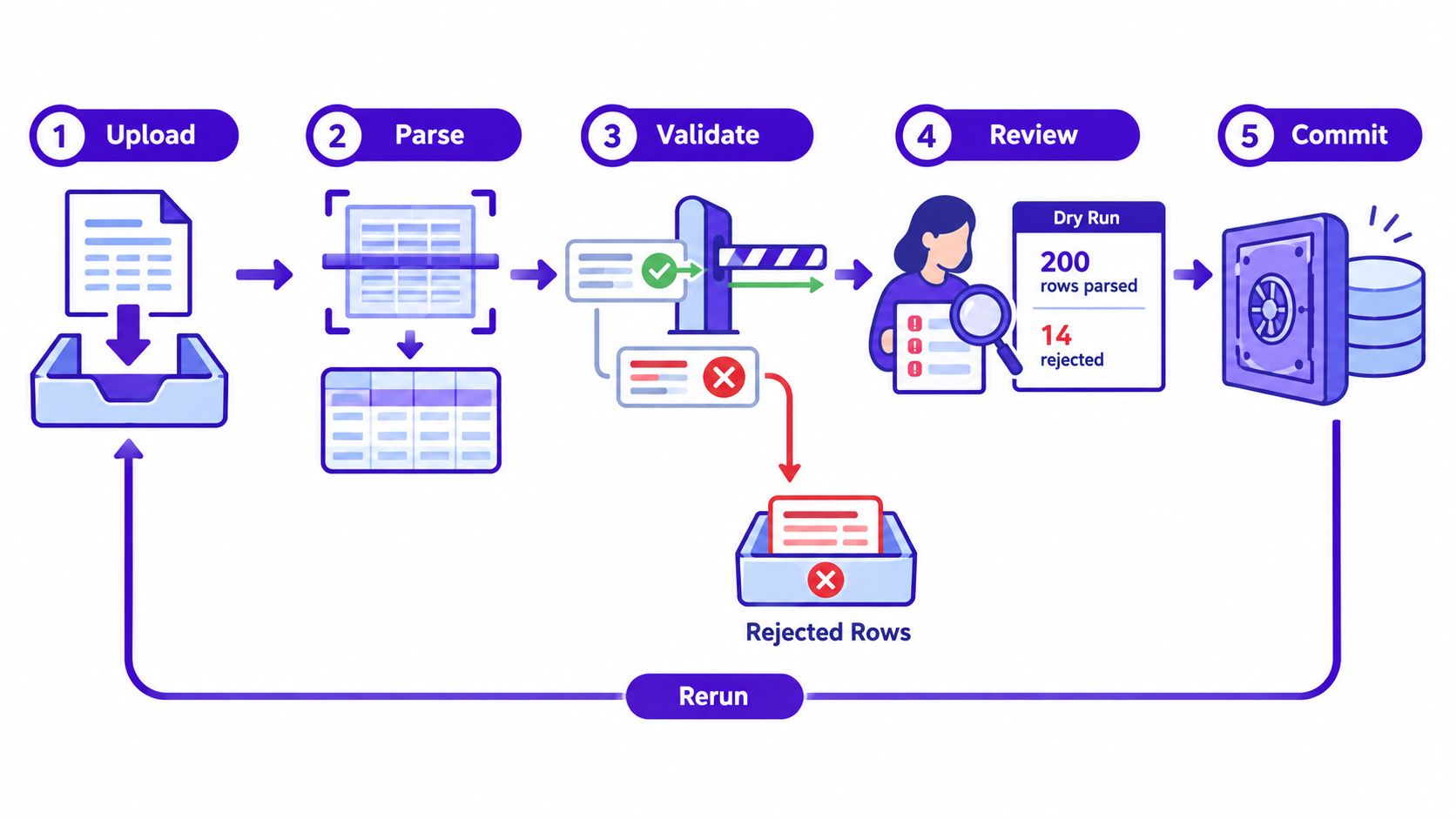
The strongest practical pattern is staged import with validation before data lands in the live system. One implementation pattern describes the workflow as upload, parse, validate, user review, import, and report, with row-level and column-level validation as the highest-signal control, plus a final reconciliation against expected totals (validator workflow reference). That's the right shape for job tracker imports too.
Use a dry run first
A dry run should parse the file, map the columns, and report rejected rows without writing anything to production. You want to know:
- which rows fail hard validation
- whether required fields are present
- how dates parsed
- whether text fields remained text
- whether extra columns were ignored or misread
If the import tool supports a preview, inspect the fields Excel tends to coerce first. Dates, IDs, phone numbers, and salary values are the usual trouble spots.
For a product workflow example, Eztrackr's spreadsheet import feature is built around bringing in existing application history from a spreadsheet, which is exactly the kind of process where preview and validation matter more than speed.
Validate before you commit
Spreadsheet-quality research has argued that import-specific controls belong inside normal spreadsheet practice, including “Import CSV & validate,” checking for missing input values, and verifying completeness and accuracy when data moves between files or worksheets (spreadsheet error research). For job trackers, that translates into required-field validation before anything else.
Start with the fields that make a record usable:
- Company
- Role or title
- Applied date
Only after those pass should you worry about optional data like salary notes or referral details.
Here's a useful walkthrough before commit:
Review live samples, not just summaries
A validation report can say “passed” while a value still looks wrong in context. Review a small random sample inside the staging environment or test tracker. Compare each imported row back to the source. Don't just inspect the first few rows. Problems often cluster around rows with unusual characters, long notes, blank cells, or copied job-board URLs.
When an import does fail, the best tools return a downloadable error report you can fix in the spreadsheet itself. Editing bad rows one by one inside the tracker is slow and usually creates a second source of truth.
Detecting and Merging Duplicate Applications
Duplicates aren't one problem. They're a family of problems.
A straight re-import creates one kind of duplicate: exact same company, exact same title, exact same date. Mixed-source tracking creates another: “LinkedIn” in one row, “linkedin.com” in another, one title with trailing spaces, one with a slightly different capitalization. Then there are job-board URLs with tracking parameters that make identical listings look unique.
Exact matching works for clean re-imports
If your data is tidy, a composite key such as company + role + applied date catches obvious duplicates well. It's deterministic and easy to explain. That matters if you're importing into a shared tracker and need predictable results.
Fuzzy matching works better on messy real-world logs
Job-search data rarely stays tidy. Company names drift. Roles shorten. One file says “Software Engineer II,” another says “Software Engineer 2.” In those cases, normalized comparisons beat exact string equality.
Use normalization before comparison:
- Trim whitespace
- Lowercase stable fields
- Canonicalize job-board hosts
- Strip tracking parameters from URLs
- Standardize date formats before duplicate checks
Build merge review around field-level differences, not row-level replacement. Salary, notes, recruiter contact, and source URL often differ across duplicate records. Users should be able to choose which value survives per field.
| Strategy | Match Basis | Catches | Misses | Risk |
|---|---|---|---|---|
| Exact row match | Full row equality | Perfect re-imports | Small formatting changes | Low false positives |
| Composite key | Company + role + date | Most obvious duplicate applications | Variants in names and dates | Moderate false negatives |
| Normalized exact match | Cleaned company, title, URL | Formatting and casing drift | Semantic differences | Moderate |
| Fuzzy text match | Similar company/title strings | Real-world naming variation | Truly different roles at similar companies | Higher false positives |
| URL canonical match | Cleaned posting URL | Job-board duplicates with tracking params | Listings copied across different boards | Moderate |
Merge logs matter. If you can't reverse a bad merge, your duplicate solution is only half-built.
Fixing the Silent Failures Most Guides Miss
The worst spreadsheet import failures are the ones that pass validation at the file level and still corrupt values at the field level. A tracker may accept the upload, create records, and never tell you that the imported phone column lost leading zeros or that long numeric identifiers were rounded or rewritten.
Re-saving is often the real failure point
A lot of public guidance focuses on obvious CSV errors. Fewer guides deal with the corruption introduced when files are opened, edited, and re-saved in spreadsheet apps. Independent help material commonly points to delimiter mismatch, encoding issues, formulas, and structural changes as import hazards, and a recent technical explainer frames three common failure modes as parser mismatch, human editing in Excel or Sheets, and row or column inconsistency (silent failure discussion).
For job trackers, the fragile fields are predictable:
- Phone numbers and IDs become numeric and lose formatting
- ZIP or postal codes lose leading zeros
- Dates get localized into a different meaning
- Custom status fields get altered during cleanup
- Names with special characters break when encoding changes
Prevention beats cleanup
The fix isn't better error messaging after import. The fix is to preserve fidelity before the parser gets involved.
| Failure Mode | Root Cause | Affected Columns | Detection Signal |
|---|---|---|---|
| Leading zeros disappear | Spreadsheet app auto-typed text as number | Phone, postal code, ID | Length changed from source |
| Date meaning shifts | Locale-based parsing or display rewrite | Applied date, follow-up date | Parsed value differs from source date text |
| Broken characters | Encoding mismatch | Names, notes, company | Accented characters display incorrectly |
| Column drift | Wrong delimiter detected | Most or all columns | Values appear under adjacent headers |
| Scientific notation or rounding | Long values treated as numeric | IDs, external reference numbers | Displayed value no longer matches raw source |
Check the file in a plain-text editor before upload. Then compare source and imported results using simple assertions: row count, required-column non-blank checks, string length sanity checks, and spot review of vulnerable columns.
A second blind spot is cross-region behavior. Support material often mentions European delimiters and UTF-8 briefly, but rarely turns that into a practical normalization workflow. That's a problem because globally exported spreadsheet files still hit the same friction around encoding, headers, blank rows, and extra columns across modern help content (cross-region CSV issues).
If you import files from different countries, don't ask users to “just save as CSV again.” Give them a normalization rule set instead.
Your Repeatable Spreadsheet Import Checklist
The easiest way to make spreadsheet import reliable is to stop relying on memory. Use the same checklist every time.
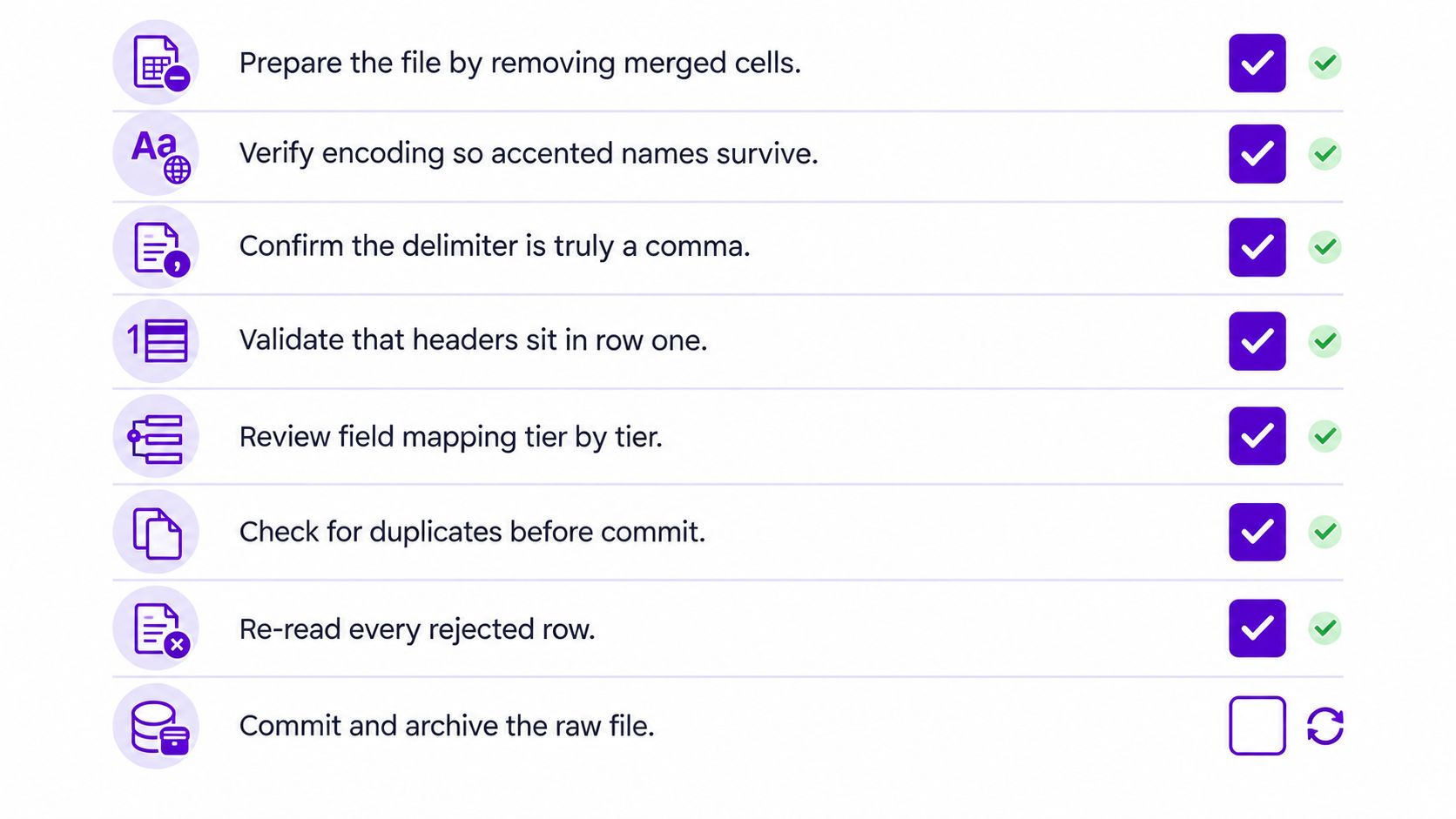
Paste this into your runbook
Freeze the structure
Remove merged cells, duplicate headers, blank columns, and inline notes.Choose the right file format
Use CSV in UTF-8 for most application logs. Keep XLSX only when workbook structure is necessary.Verify the raw file, not the spreadsheet view
Open the exported file in a text editor and confirm the delimiter and character encoding look right.Normalize fragile fields
Keep dates inYYYY-MM-DD. Force phone, ID, and postal-code fields to text before export.Review mapping by field tier
Auto-match only obvious fields. Manually confirm statuses, source labels, salary fields, and custom columns.Pick a duplicate strategy before import
Decide whether you're using exact match, normalized match, or manual merge review.Run a dry import first
Parse and validate without writing to the live tracker. Inspect rejected rows and vulnerable fields.Reconcile after commit
Compare imported records to source totals and spot-check the fields most likely to drift.
Keep the process reusable
A lot of job-search advice focuses on staying organized over time, not just logging applications once. That's why Underdog.io's job tracking advice is useful context here. The better your tracking habit, the more damaging a bad import becomes, because you're depending on that history later.
Store the original export, the cleaned file, and the import-ready version separately. If you already manage resume versions and application docs, the same discipline from document version management applies to spreadsheets too. Versioning makes import failures reversible instead of mysterious.
The best spreadsheet import workflow is boring. Same prep, same checks, same validation order, every time.
Once you treat import as a repeatable five-minute operational task instead of a one-off upload, the error rate drops and the cleanup work stops piling up.
If you're moving an existing application log into a tracker, Eztrackr includes spreadsheet import for bringing in jobs, history, and related details without rebuilding everything by hand. It's a practical fit when you want one place to manage imported applications, resumes, and follow-up workflow after the data is cleaned and validated.