Sheets Import CSV Without Breaking Columns
You exported your job applications, opened the file, and something looks wrong. Status is sitting where a date should be, a company name has split in two, and one long note has become three new rows. The import didn't fail. That's the problem.
A finished Sheets Import CSV job isn't trustworthy until you've checked it. Sheets and Excel can rewrite dates, strip leading zeros, and break quoted notes while still showing a neat grid. Treat every import as untrusted until your row count, column count, and five sensitive cells match the original file.
Prepare the CSV So Columns Stay Put
Say you've exported about 80 applications and you find Status sitting in the date column. Don't fix that sheet cell by cell. Go back to the source file, because the sheet is already showing you shifted values, and patching shifted values hides which other rows moved too.
Start by making two copies. Keep one untouched and work on the other. If anything goes wrong later, you'll re-import from the untouched copy instead of guessing what the original note or date said.
Write Down the Shape Before You Touch Anything
Open the CSV in a plain text editor and write down two numbers: how many rows and how many columns. Count the header row separately, so you know whether 80 applications means 80 data rows plus one header. You'll compare those numbers after import, and a mismatch tells you more than a quick visual scan ever will.
A CSV is a rectangle. Every record needs the same number of fields, even when a field is empty. If one row has seven commas and the next has eight, something in that second row contains an extra comma that isn't protected by quotes, and every value after it shifts one column to the right.
That rectangle rule isn't a Sheets invention. CSV became formally documented on October 4, 2005, when the Internet Engineering Task Force published RFC 4180, which established the MIME type "text/csv" and documented records separated by line breaks, fields separated by commas, and optional double-quoting for fields containing commas, quotation marks, or line breaks. The specification also states that each record should contain the same number of fields. Before that date the format was already in wide use, but it lacked a common formal description.
The U.S. Library of Congress format description for CSV describes it as a simple flat-file format for rectangular arrays of numeric and textual values, with columns separated by commas and rows separated by line breaks, and notes that CSV files can be imported and exported by relational database systems, spreadsheet programs, and statistical-analysis software. That's why the same file can move between a spreadsheet and a database. It's also why a missing header, inconsistent columns, or an embedded comma can shift values into the wrong fields anywhere you open it.
One Header Row in This Order
Use one header row at the top, no title row above it and no blank row below it. For a job log, keep these eight headers in this order: Company, Position, Status, Date Applied, Job URL, Location, Salary, Notes. The order matters less than consistency, but fixing one order now means every future export lines up with the last one when you append rows.
Rename any header that's blank, duplicated, or carrying a trailing space. A header called "Company " with a space at the end isn't the same as "Company" when a tool matches columns by name. Two columns both called "Notes" force the importer to guess, and a blank header often pulls the next field into the wrong place.
Practical rule: If you can't point at a header and say exactly what belongs under it, rename it before you import, not after.
Here's the shape each column needs.
| Header | What belongs here | Safe format | What breaks |
|---|---|---|---|
| Company | Employer name | Text, quoted if it contains a comma | Acme, Inc. splits into two columns |
| Position | Role title | Plain text | A blank header steals the next field |
| Status | Pipeline stage | Saved, Applied, Interview, Offer, or Rejected | Free-typed labels break filters |
| Date Applied | Day submitted | YYYY-MM-DD, such as 2026-03-12 | 03/12/2026 swaps month and day across locales |
| Job URL | Posting link | Single-line URL | A line break splits the row |
| Location | City, remote, or hybrid | Text, quoted if it contains a comma | Austin, TX lands in two columns |
| Salary | Figure you may sort | Digits only, such as 95000 | Mixed currency symbols block a numeric sort |
| Notes | Recruiter context | Quoted text, including line breaks | An unquoted break becomes an extra row |
Quote the Fields That Contain Punctuation
A comma inside a value looks exactly like a comma between values unless you wrap the whole field in double quotes. So write "Acme, Inc." and "Austin, TX", not the bare versions. The same rule covers a field that contains a quotation mark or a line break.
Notes are where this catches people. You paste a recruiter's two-line message and press Enter in the middle of it. Without quotes around the whole note, that Enter ends the record, and the second line becomes a new row with too few fields. Inside quotes, the line break stays part of the note.
- Company and Location: Quote them whenever they contain a comma, even if the rest of the file looks clean.
- Notes: Quote the entire note if it runs past one line or contains a comma.
- Job URL: Keep it on one line with no spaces, and delete any trailing punctuation copied from an email.
Pin Down Status, Dates, and Salary
Status gets exactly five values: Saved, Applied, Interview, Offer, or Rejected. Free-typed variants like "applied!", "Applied online", and "In progress" all mean similar things to you and nothing consistent to a filter. Pick the closed list now and your counts by stage stay honest later.
Write Date Applied as 2026-03-12, never 03/12/2026. A month-first file opened on a day-first locale turns March 12 into December 3, and both dates look plausible, so nothing flags it. Year first removes the ambiguity because no locale reads it two ways.
Salary is digits only, such as 95000. Drop the currency symbol, the comma in 95,000, and words like "plus bonus". A comma inside a salary is also a field separator, so 95,000 unquoted becomes two fields. If you need currency, keep it in a separate note rather than mixing symbols into a column you want to sort.
Watch identifiers too. Spreadsheets rewrite application IDs and ZIP codes that start with zero, turning 02139 into 2139. If your export carries an ID column, treat it as text from the start and don't let an importer convert it to a number.
Check One Sample Row by Hand
Build one row you can verify at a glance. Say it's a remote Product Analyst role submitted on 12 March 2026 from LinkedIn. In the file, that reads as a company name, Product Analyst, Applied, 2026-03-12, a single-line LinkedIn URL, Remote, a digits-only salary, and a quoted note.
Count the commas outside quotes in that row. You should get seven, which gives you eight fields. If you count eight, find the unquoted comma before you import, because that single character is the whole reason Status ends up sitting in a date column.
How to Import a CSV into Sheets and Excel
The import dialog is where you keep the control you built into the file. Double-clicking a CSV hands that control to your operating system defaults. Use the menu path instead, every time.
The flow below puts Sheets first and Excel second, with the risky default named next to the click that avoids it.
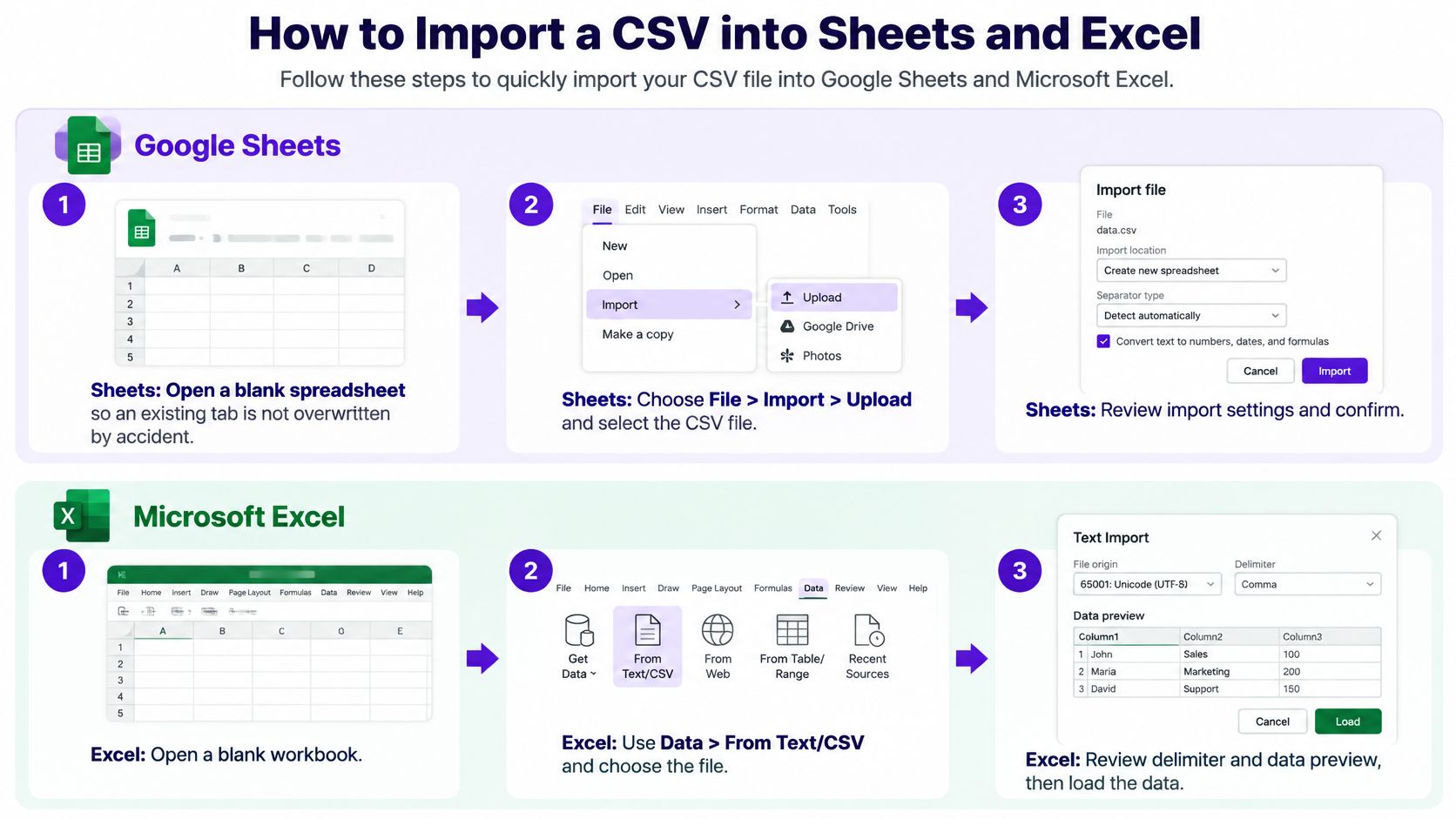
Google Sheets Import Steps
- Open a blank spreadsheet so an existing tab isn't overwritten by accident.
- Choose File, then Import, then Upload, and select the CSV.
- Pick Insert new sheet(s) when other tabs must stay, or Replace current sheet when this file is the whole workbook.
- Set Separator type to Comma, or to Semicolon when the preview shows one mashed column, which is common in European exports.
- Uncheck Convert text to numbers, dates, and formulas when the file holds application IDs, ZIP codes, or salary text.
- Click Import data.
Step 5 does the heavy lifting. With conversion on, Sheets helpfully turns your ZIP into a number and your date into whatever your locale prefers. With it off, values land as text that matches the file, and you can format a column deliberately afterward.
Step 4 is the one to check when everything lands in column A. A single mashed column doesn't mean the file is broken. It means the separator in the file isn't the separator Sheets assumed, and a semicolon export is the usual cause.
If you want to watch the clicks before you try them on your own file, this walkthrough shows the same menus in order.
Excel for Microsoft 365 Steps
- Use Data, then From Text/CSV, not a plain File Open.
- Confirm the delimiter in the preview before you load anything.
- Set Text on any ID or ZIP column, and set Date only if the preview already shows YYYY-MM-DD.
- Load into a table.
That preview is the whole reason to use this path. You can see the columns split, spot a mashed column, and set a type before the data touches a cell. File, Open follows your system list separator and can skip that type control entirely, so a comma file on a semicolon system opens as one column and invites you to fix it by hand.
A quick look with File Open is fine. A job history you'll keep for months deserves the preview.
Use this comparison when you're deciding which route fits the job in front of you.
| App | Path | Separator control | Type control | Use it when |
|---|---|---|---|---|
| Google Sheets | File, Import, Upload | Detect, comma, semicolon, tab, or custom | Convert text to numbers, dates, and formulas checkbox | You want a shared sheet, a new tab, or an append |
| Excel From Text/CSV | Data, From Text/CSV | Delimiter confirmed in the preview | Text on ID or ZIP columns; Date only when the preview shows YYYY-MM-DD | You need a job-history import with type control |
| Excel File Open | File, Open on the CSV | System list separator, often comma or semicolon | Little or no preview on older builds | You only need a quick look, not a job-history import |
The On-Screen Check Before You Do Anything Else
Look at row 1 first. Your eight header names should sit there, one per column, spelled exactly as they are in the file. Then count the columns and compare them with the number you wrote down earlier.
If both match, keep going. If either is off, don't start sorting, filtering, or adding formulas. Those actions bake the mistake into a file that now looks intentional, and you'll have a harder time telling original values from your edits when you compare against the source.
Fixes When Values Shift or Change
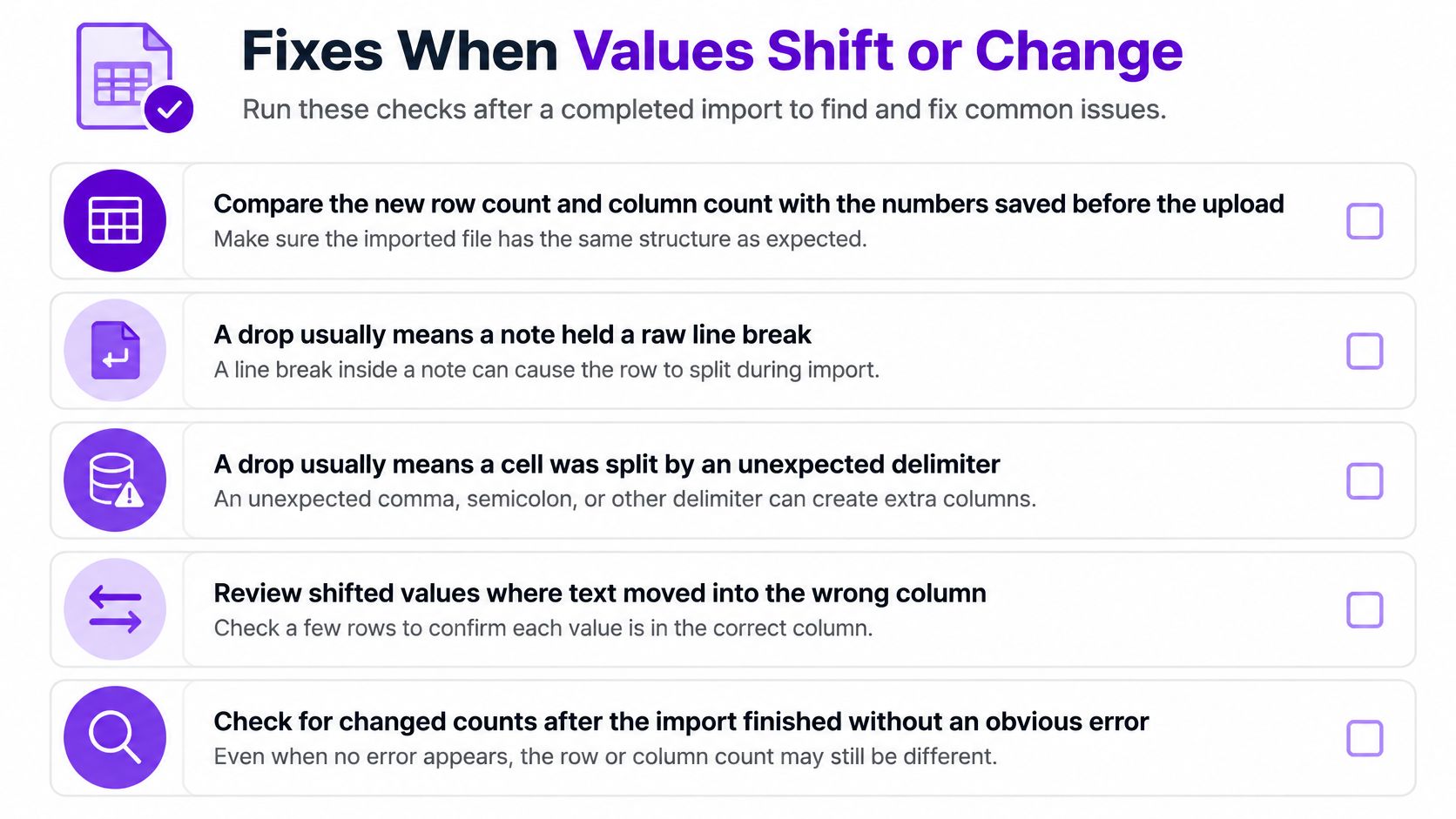
Start with arithmetic, not eyeballing. Compare the new row count and column count with the numbers you saved before the upload. A drop usually means a note held a raw line break, or a quoted block was cut short. A jump usually means a cell was split by an unexpected delimiter.
Counts that match aren't proof on their own, because a value can change in place without moving. So check five cells on purpose next.
The Five Cells That Catch Most Damage
- A company name with a comma, which shows whether quoting survived.
- A ZIP or application ID with a leading zero, which shows whether number conversion stayed off.
- A date in 2026, which shows whether month and day swapped.
- A non-English character in a name, which shows whether the encoding held.
- A note longer than one line, which shows whether the record stayed in one row.
Open the original file beside the sheet and read those five cells in both places. If all five match, the file is usually safe, because each one tests a different failure that an importer can cause without showing an error. If one differs, you've already narrowed the cause to a short list.
This is the part most click-by-click guides skip. Google's support guidance on uploading and converting files confirms that large CSV imports can fail or become unreliable as data volume grows, and recommends import functions rather than copy-paste for large inputs. It also advises using Connected Sheets with BigQuery when a CSV is too large for direct import. A completed import, in other words, isn't the same as a complete one.
Match Each Symptom to One Change
Change one setting at a time. If you flip the separator, the encoding, and the conversion checkbox together, the import may look right and you'll still not know which change fixed it, so the next export breaks the same way.
| What you see | Likely cause | What to change |
|---|---|---|
| Columns shifted right | Wrong delimiter or an unquoted comma | Match comma or semicolon to the file and quote fields that contain commas |
| Strange symbols in names | File was not saved as UTF-8 | Re-save as UTF-8 and import again |
| ZIP or ID lost its zeros | Cell converted to a number | Format as text and turn off convert-to-number |
| Applied date moved a month | Day-month locale mismatch | Store the date as YYYY-MM-DD |
| Row count dropped or jumped | A note contained a raw line break | Wrap multiline notes in double quotes |
| A formula calculated | A cell began with = | Prefix an apostrophe or remove the equals sign |
| Import spins or fails | File is past a comfortable Sheets size | Import the active rows, not the whole archive |
Strange symbols deserve a second look because they don't move columns. A name with an accented character turns into stray marks when the file wasn't saved as UTF-8, and the row still lines up perfectly. Re-save the source as UTF-8 in a text editor, then import again rather than retyping names in the sheet.
The equals sign is quieter still. A note or salary note that starts with = becomes a formula, and the cell shows a calculated result or an error instead of your text. Prefix an apostrophe in the source file so the cell stays text.
Re-Import Instead of Repairing the Broken Sheet
Once you've found the cause, fix the source file or the import setting, then import the untouched copy again. Don't edit the broken sheet and treat it as the new source. A hand-repaired sheet carries your fixes in some rows and the original damage in rows you didn't inspect.
Run the counts and the five cells again on the fresh import. It takes two minutes, and it's the only way to know the fix worked across the whole file rather than on the one row you were staring at.
Tips for Large or Messy CSV Files
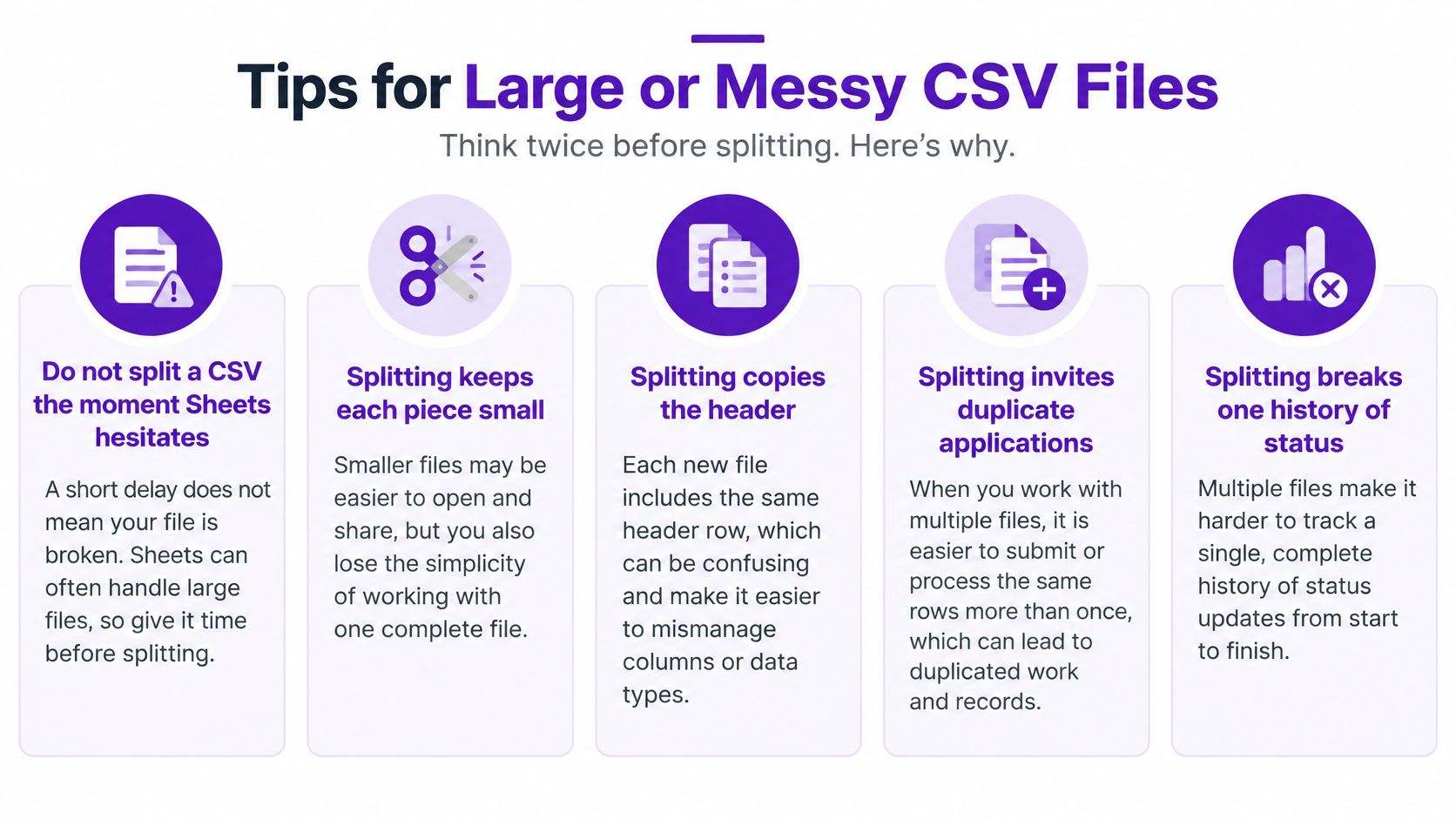
Splitting a CSV the moment Sheets hesitates feels like the obvious fix, and it's usually the wrong one. Each piece gets its own copy of the header, the same application can slip into two chunks, and one continuous history of status changes becomes fragments nobody can reconcile later. You end up with smaller files and a bigger problem.
Archive First, Then Filter
Work in this order instead of chopping the file at an arbitrary line.
- Keep the original export untouched as the archive.
- Filter to rows you still act on, such as Saved, Applied, and Interview, and import that slice.
- Leave older Rejected and Offer rows in the archive unless you need them for a rate.
- Delete empty columns and repeated header rows before a second attempt.
- Treat a long, stalled import as size or formula load, not as a reason to cut the file in half.
Filtering before import protects the thing splitting destroys. Your archive still holds every application in original order, and your working sheet holds only what needs action this week. When you need a response rate, you go back to the archive and count there, rather than stitching four partial files together and hoping no row was pasted twice.
Repeated header rows are worth hunting for in a messy export. They sneak in when exports get concatenated, and they import as data rows containing the words Company and Position. Search for your own header text in the body of the file and delete those lines.
Know the Limits You Are Hitting
Google's guidance on files you can store and convert says that files too large for direct Google Sheets import should be routed through Connected Sheets and BigQuery instead. Size is only part of the story, though. A large, wide, or formula-heavy CSV can also slow an import down or stall it entirely, even when it sits well under the file-size ceiling.
Read those two limits together. A file can be small in rows and still slow if it's wide, or if the destination sheet already carries formulas that recalculate for every incoming row. So before a second attempt, strip empty columns, and import into a plain sheet rather than one loaded with lookups.
A useful test: If you're deleting old rows to make room for new ones, the sheet has stopped being a record and become a bottleneck.
When the Sheet Should Stop Being the Database
A spreadsheet is a fine staging area and a poor long-term home once certain things pile up. Watch for many months of notes, several people editing the same rows, or a status history you can't rebuild after a bad merge. Any one of those means a single wrong sort can scramble records you'll never reconstruct from memory.
At that point, another cleanup pass buys you a week. Moving the verified rows into a purpose-built tracker is the durable fix, and the Job Tracker feature overview shows what that handoff looks like once applications live as records instead of rows. Keep the CSV archive either way, because it's still your proof of what you exported and when.
Import the Checked Sheet into a Tracker
A clean CSV is a sealed moving box: the label can look right while one glass is broken inside. Treat the import as unproven until the row count and the five sensitive cells match the original file, because Sheets and Excel can rewrite dates, leading zeros, and quoted notes.
Bring the Cleaned File In
In Eztrackr, open Features and choose Import Spreadsheet. The menu lists Job Tracker, Import Spreadsheet, Resume Builder and Resume Scorer, so the import item is the second entry. It turns company, role, status, dates, links, contacts, documents and notes into applications you can move between columns as work progresses.
The Import Spreadsheet feature page shows the handoff screens before you commit. Send in the checked file you just exported and verified. Retyping roles invites fresh errors in URLs and dates that the file already had right.
Verify One Week After It Loads
Audit one week of rows after the import settles. Choose a week that mixes stages, so Applied and Interview get tested instead of five identical Saved rows. Include a company name with a comma, one date, and a note that carried quotes in the CSV.
If a field is wrong, keep the untouched CSV, repair the source file, and run the import again. Patching records one by one feels faster and leaves you unsure which records you touched. Shared rubrics fail the same way when scores are judged before definitions are aligned, which is why calibration tips for midyear reviews can be a useful reminder to compare entries to a standard before editing anything.
Trust the file only after the counts and the five sample cells agree. Everything before that is a draft.
Staying in Sheets can work for a small log. Freeze the header row, keep status labels consistent, and stop adding notes with unquoted line breaks, since those split records on the next export. The protective habit stays the same either way: verify first, then build on the result.
Bring your checked job log into Eztrackr and stop maintaining it as a fragile grid of commas and quotes. You can keep company, status, dates, links, contacts, documents and notes attached to each application, and move jobs between columns as you progress instead of re-sorting rows. Import the verified file today, confirm one week of statuses, then spend the next hour on applications rather than column repairs.